1、第一步
首先找到Word里的宏按钮,如图
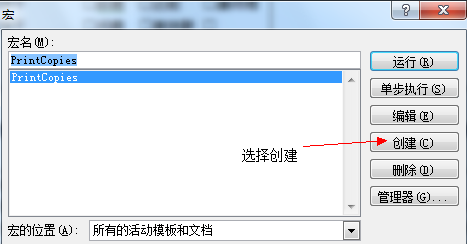
然后,会弹出宏查看窗口,起一个名字然后选择创建,如图

2、第二步
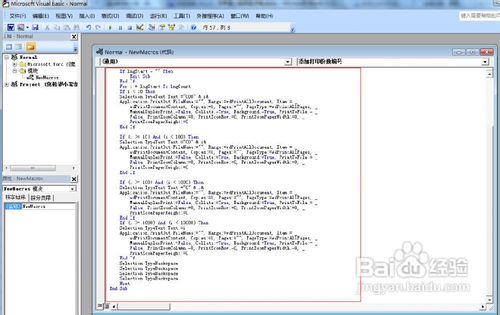
在弹出的宏录制窗口内输入宏代码,然后保存,如图
宏代码如下:
Sub PrintCopies()
‘
‘ Macro1 Macro
‘
‘
Dim i As Long
Dim lngStart
Dim lngCount
lngCount = InputBox(“Please enter the number of copies you want to print”, “Please enter the number of copies you want to print”, 1)
If lngCount = “” Then
Exit Sub
End If
lngStart = InputBox(“Enter the starting number you want to print”, “Enter the starting number you want to print”, 1)
If lngStart = “” Then
Exit Sub
End If
For i = lngStart To lngCount
If i < 10 Then
Selection.TypeText Text:=”000″ & i&
Application.PrintOut FileName:=”", Range:=wdPrintAllDocument, Item:= _
wdPrintDocumentContent, Copies:=1, Pages:=”", PageType:=wdPrintAllPages, _
ManualDuplexPrint:=False, Collate:=True, Background:=True, PrintToFile:= _
False, PrintZoomColumn:=0, PrintZoomRow:=0, PrintZoomPaperWidth:=0, _
PrintZoomPaperHeight:=0
End If
If (i >= 10) And (i < 100) Then
Selection.TypeText Text:=”00″ & i&
Application.PrintOut FileName:=”", Range:=wdPrintAllDocument, Item:= _
wdPrintDocumentContent, Copies:=1, Pages:=”", PageType:=wdPrintAllPages, _
ManualDuplexPrint:=False, Collate:=True, Background:=True, PrintToFile:= _
False, PrintZoomColumn:=0, PrintZoomRow:=0, PrintZoomPaperWidth:=0, _
PrintZoomPaperHeight:=0
End If
If (i >= 100) And (i < 1000) Then
Selection.TypeText Text:=”0″ & i&
Application.PrintOut FileName:=”", Range:=wdPrintAllDocument, Item:= _
wdPrintDocumentContent, Copies:=1, Pages:=”", PageType:=wdPrintAllPages, _
ManualDuplexPrint:=False, Collate:=True, Background:=True, PrintToFile:= _
False, PrintZoomColumn:=0, PrintZoomRow:=0, PrintZoomPaperWidth:=0, _
PrintZoomPaperHeight:=0
End If
If (i >= 1000) And (i < 10000) Then
Selection.TypeText Text:=i
Application.PrintOut FileName:=”", Range:=wdPrintAllDocument, Item:= _
wdPrintDocumentContent, Copies:=1, Pages:=”", PageType:=wdPrintAllPages, _
ManualDuplexPrint:=False, Collate:=True, Background:=True, PrintToFile:= _
False, PrintZoomColumn:=0, PrintZoomRow:=0, PrintZoomPaperWidth:=0, _
PrintZoomPaperHeight:=0
End If
Selection.TypeBackspace
Selection.TypeBackspace
Selection.TypeBackspace
Selection.TypeBackspace
Next
End Sub
3、第三步
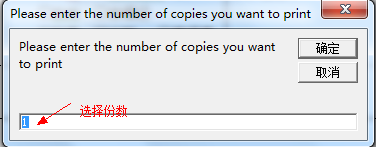
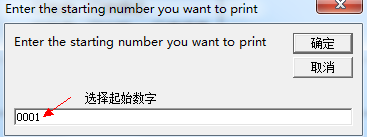
把输入光标放在你想要添加打印份数编号的地方,然后运行宏,会弹出如下窗口,第一个窗口是输入打印份数,第二个窗口是输入起始数字,如图