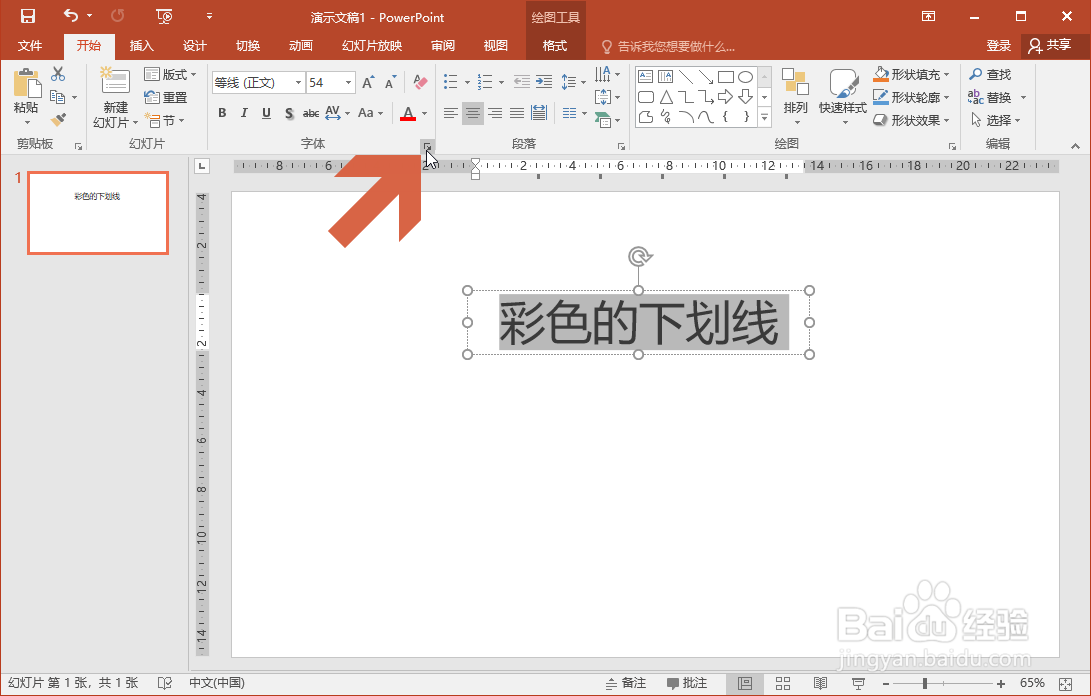
1、先选择PowerPoint 2016页面中要添加下划线的文字。

2、选择文字后,点击PowerPoint开始选项卡中图示的【字体】按钮。
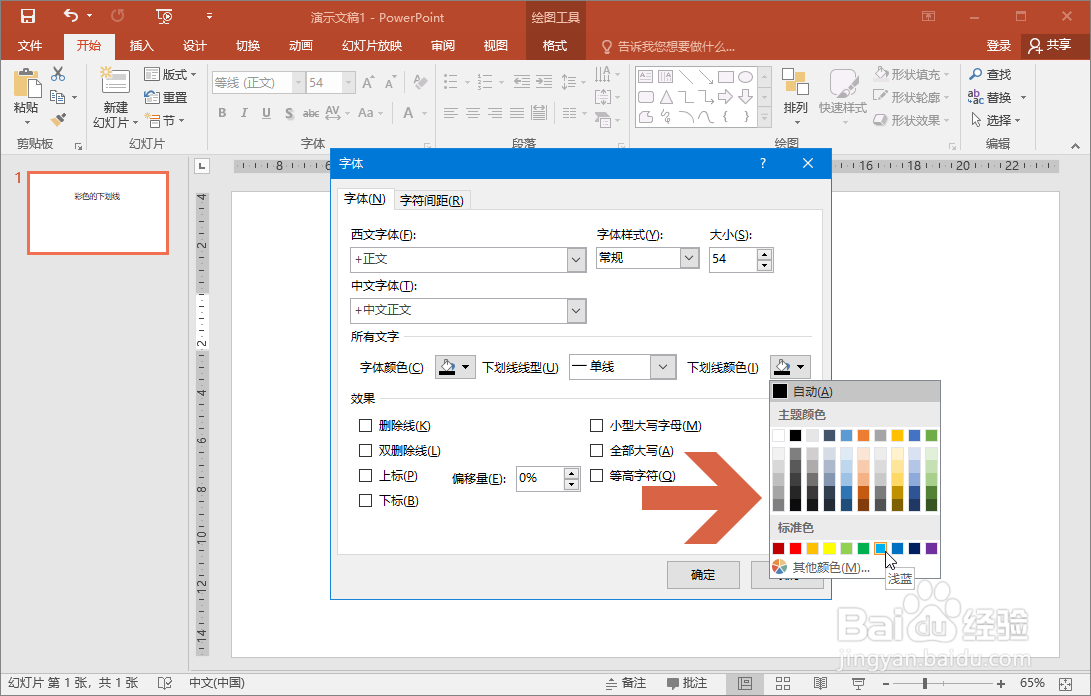
3、这时会弹出字体对话框,点击其中的下划线线型下拉框,在列表中选择一个下划线线型。

4、再点击右侧的【下划线颜色】按钮。

5、在颜色列表中选择一个和文字颜色不同的下划线颜色。
6、点击确定按钮。

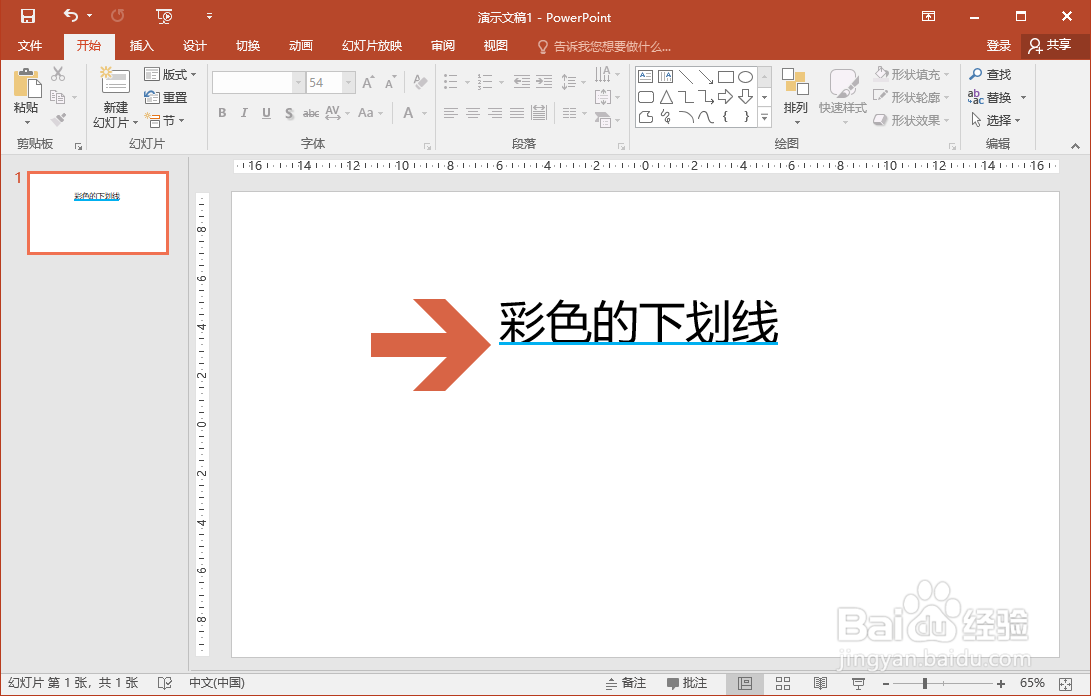
7、这样,PowerPoint 2016中文字下划线的颜色就和文字颜色不同了。
时间:2026-04-22 14:32:19
1、先选择PowerPoint 2016页面中要添加下划线的文字。
2、选择文字后,点击PowerPoint开始选项卡中图示的【字体】按钮。
3、这时会弹出字体对话框,点击其中的下划线线型下拉框,在列表中选择一个下划线线型。
4、再点击右侧的【下划线颜色】按钮。
5、在颜色列表中选择一个和文字颜色不同的下划线颜色。
6、点击确定按钮。
7、这样,PowerPoint 2016中文字下划线的颜色就和文字颜色不同了。
