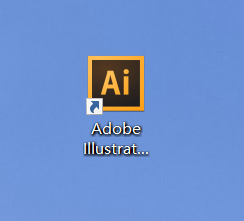
1、打开桌面上的Adobe Illustrator CS6(其他版本也可以)。
2、在菜单栏找到并依次点击【文件】、【新建】。

3、在弹出的窗口设置好参数,点击【确定】,新建文档。
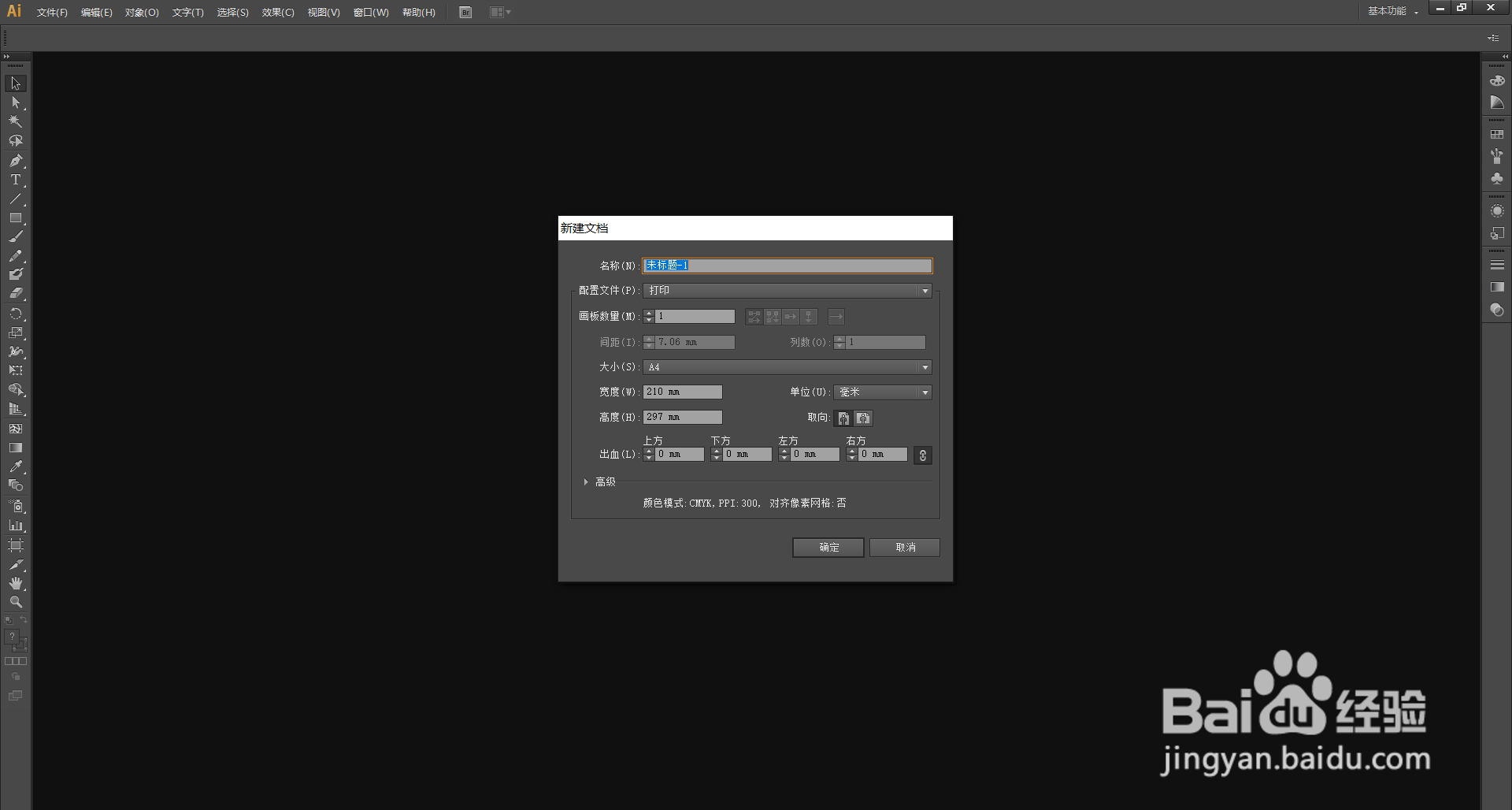
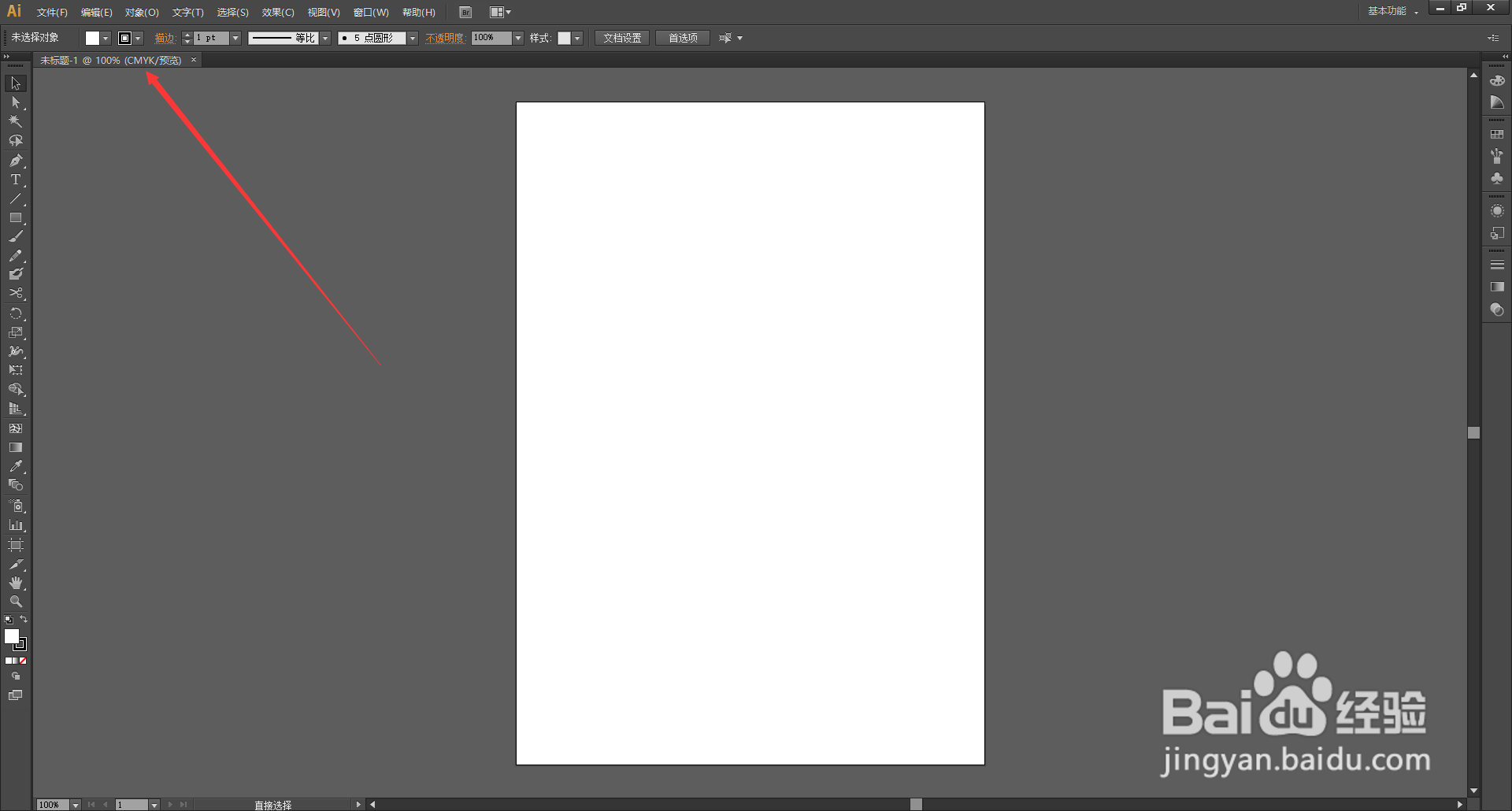
4、可以看到小编的Adobe Illustrator默认为“CMYK模式“。
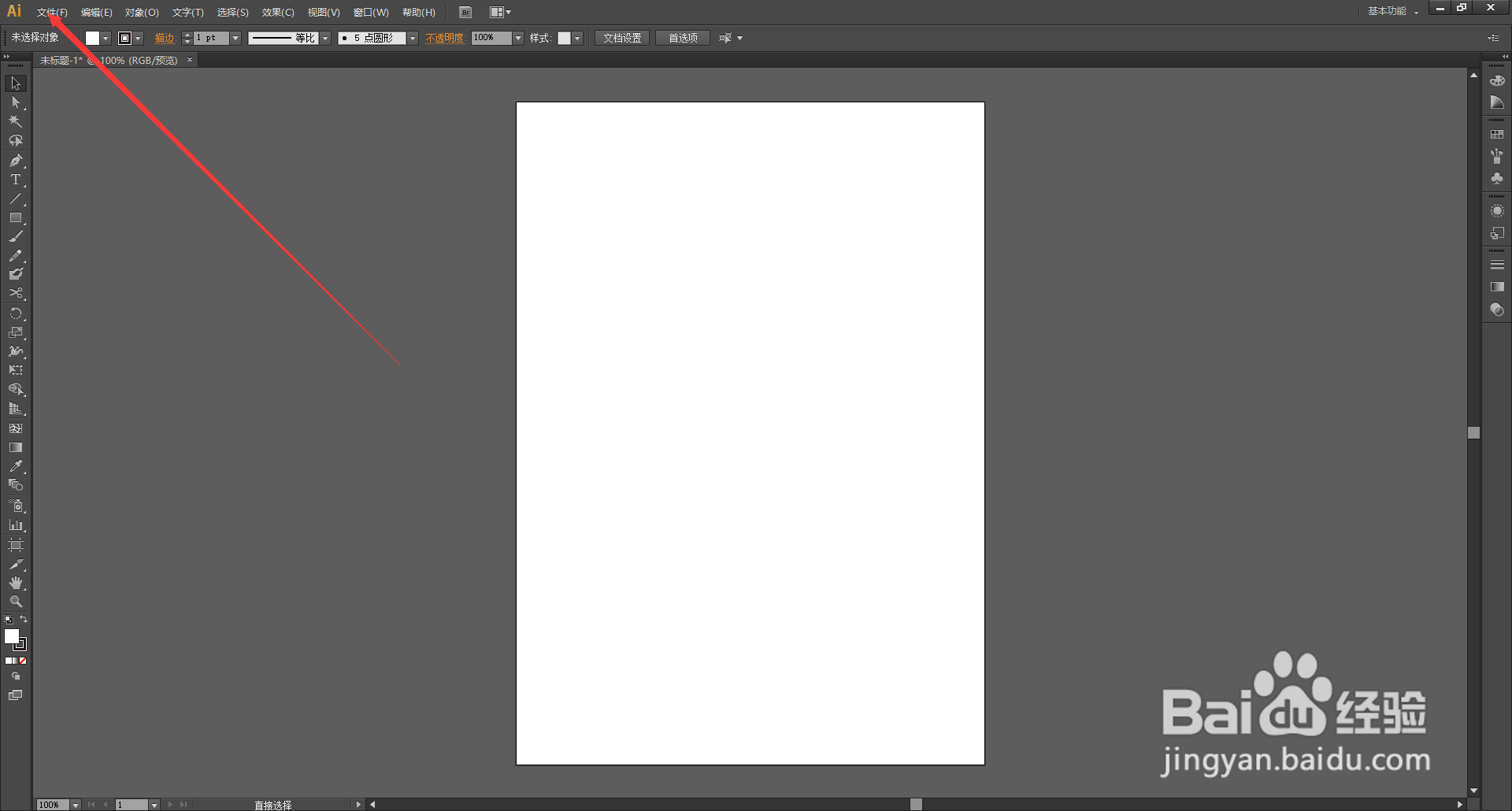
5、在菜单栏上找到并点击【文件】打开下拉列表。
6、在下拉列表里选择【文档颜色模式】,然后选择想要的颜色模式。
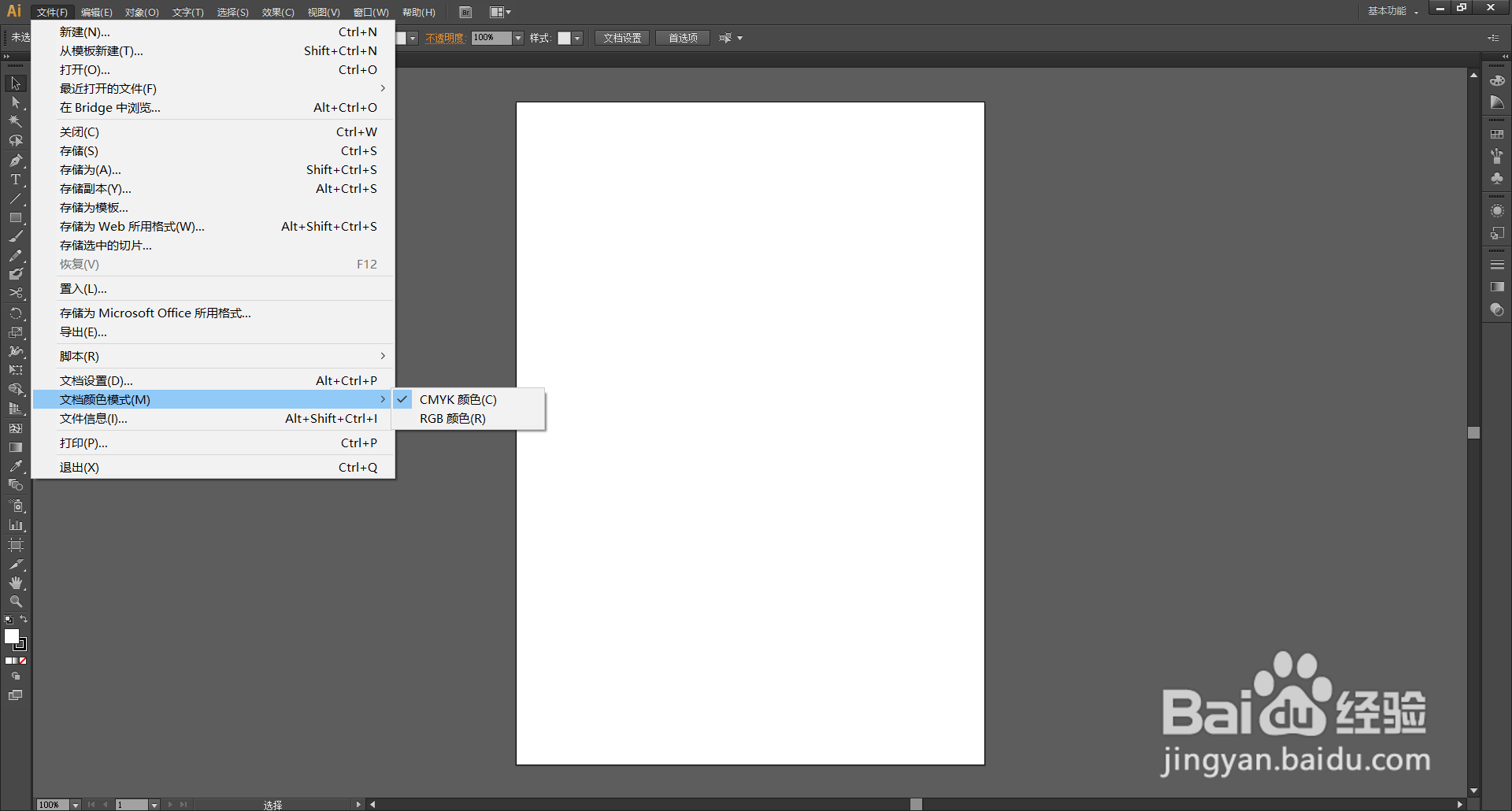
7、小编选择了“RGB模式”。
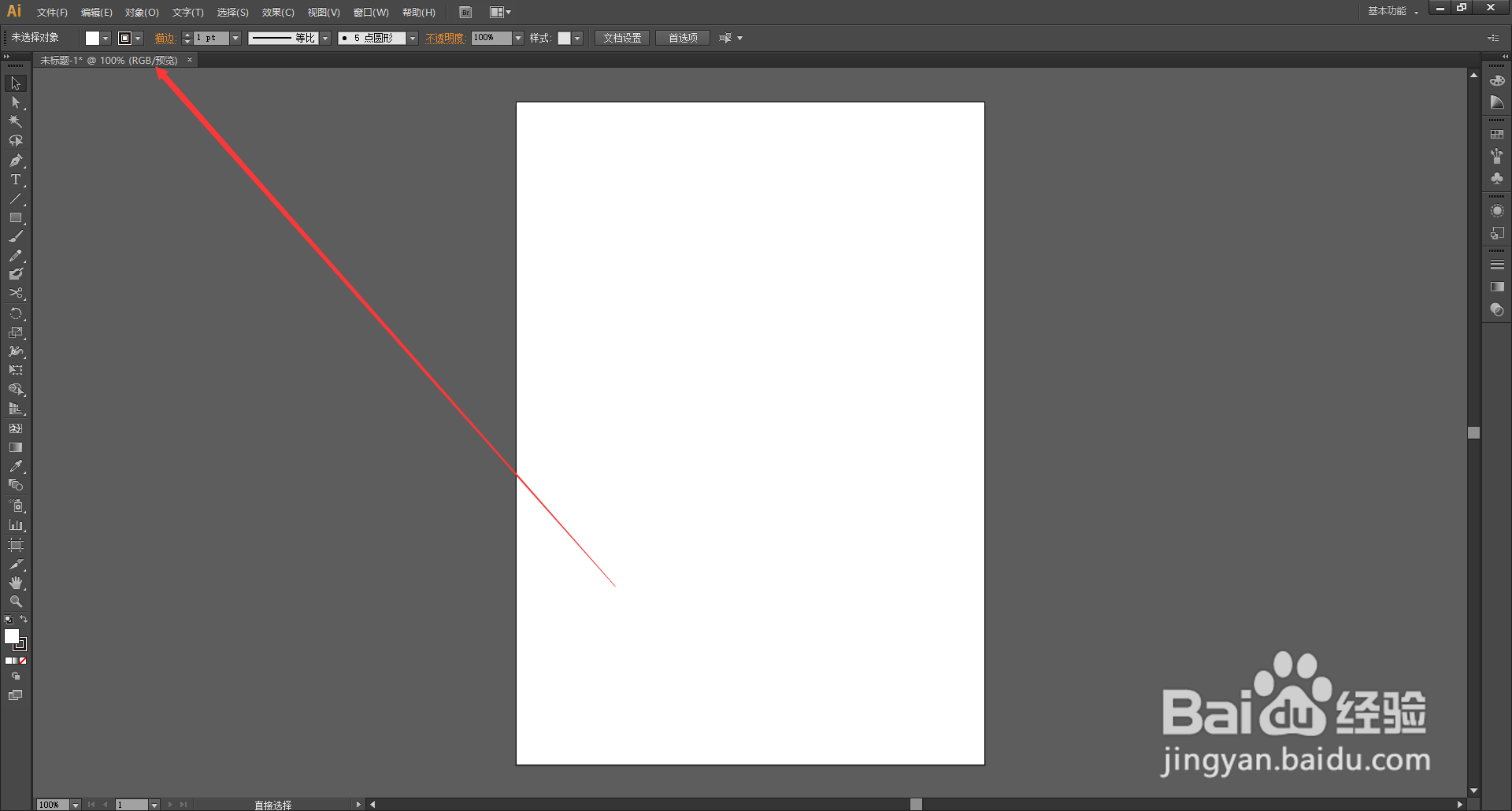
可以看到小编已经将软件默认的“CMYK模式”更改成了“RGB模式”。
时间:2026-04-25 08:55:59
1、打开桌面上的Adobe Illustrator CS6(其他版本也可以)。
2、在菜单栏找到并依次点击【文件】、【新建】。
3、在弹出的窗口设置好参数,点击【确定】,新建文档。
4、可以看到小编的Adobe Illustrator默认为“CMYK模式“。
5、在菜单栏上找到并点击【文件】打开下拉列表。
6、在下拉列表里选择【文档颜色模式】,然后选择想要的颜色模式。
7、小编选择了“RGB模式”。
可以看到小编已经将软件默认的“CMYK模式”更改成了“RGB模式”。
