Hyper-V安装Windows Server 2008 R2 x64企业版

 时间:2026-04-22 14:21:22

图解Hyper-V安装Windows Server 2008 R2 x64企业版

工具/原料

安装Windows Server 2008 R2 x64企业版

Hyper-V

方法/步骤

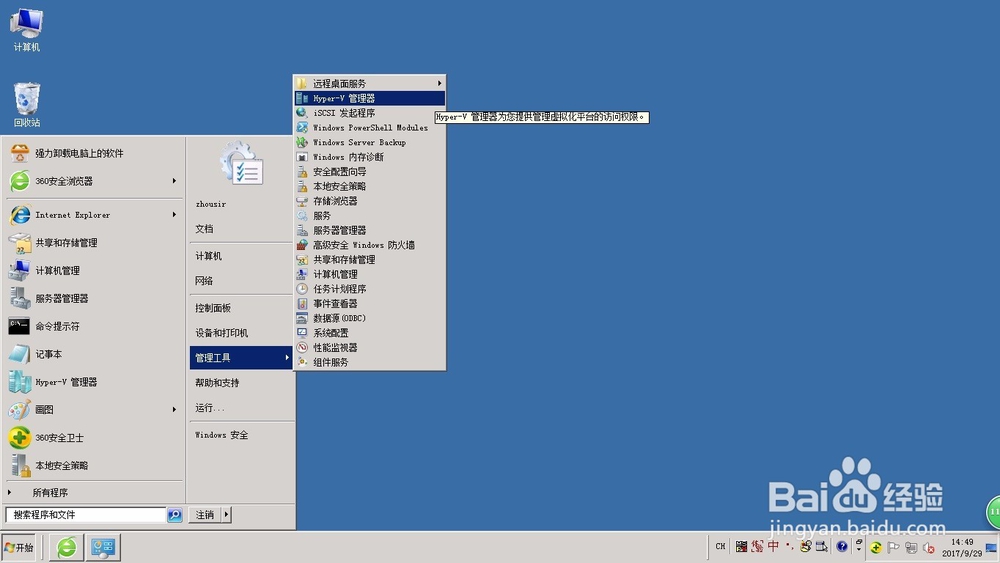
第一步 点击开始按钮,选择管理工具启动Hyper-V管理器。
Hyper-V安装Windows Server 2008 R2 x64企业版

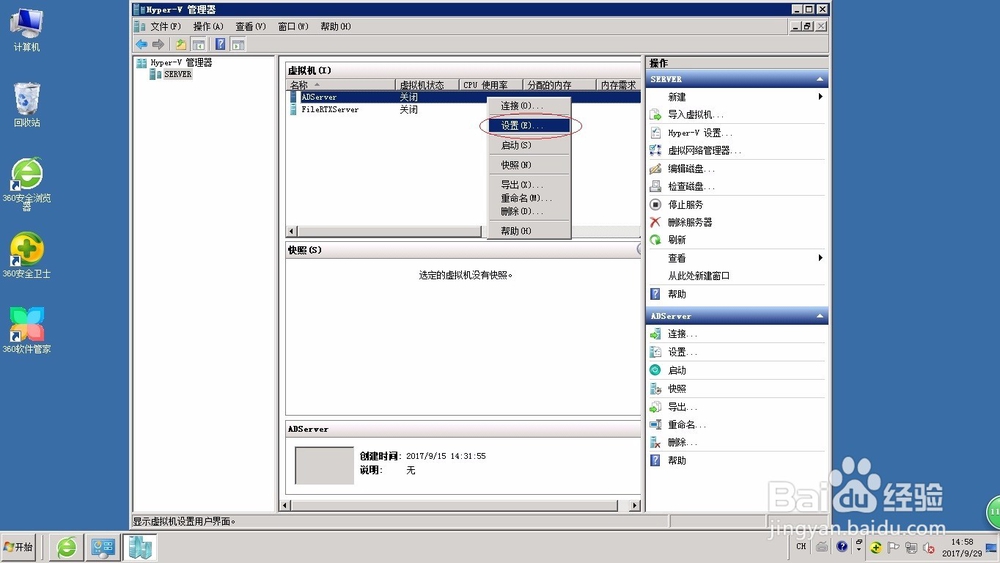
第二步 右击已安装的虚拟机,选择设置。

Hyper-V安装Windows Server 2008 R2 x64企业版

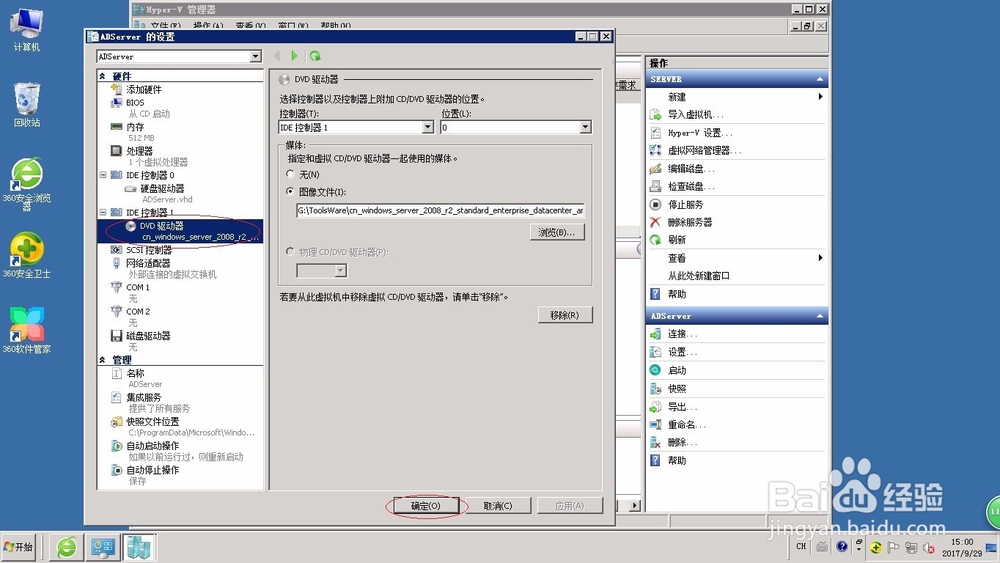
第三步 选择DVD驱动器,指定图像文件定位Windows Server 2008 R2 x64企业版镜像。
Hyper-V安装Windows Server 2008 R2 x64企业版

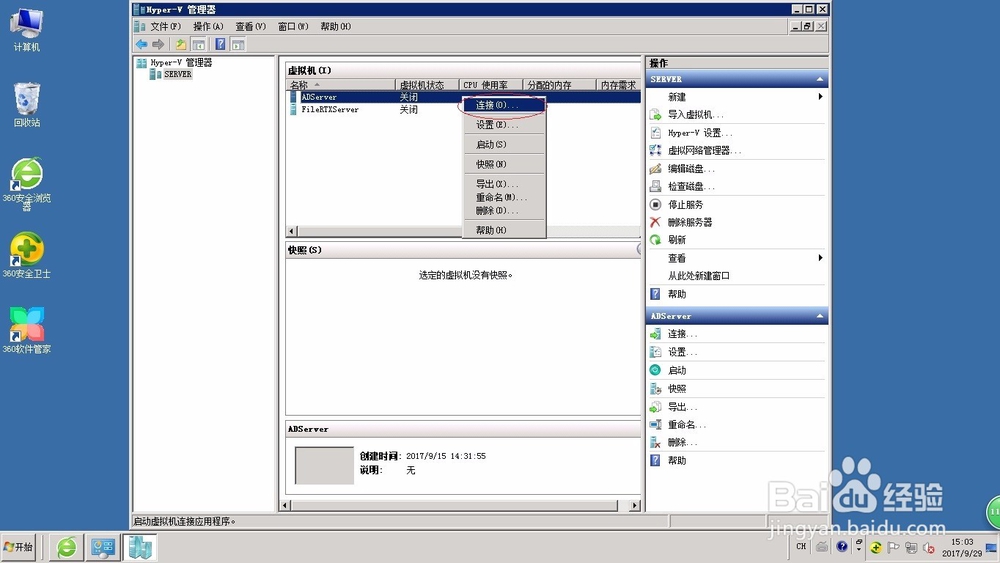
第四步 右击已安装的虚拟机,选择连接。

Hyper-V安装Windows Server 2008 R2 x64企业版

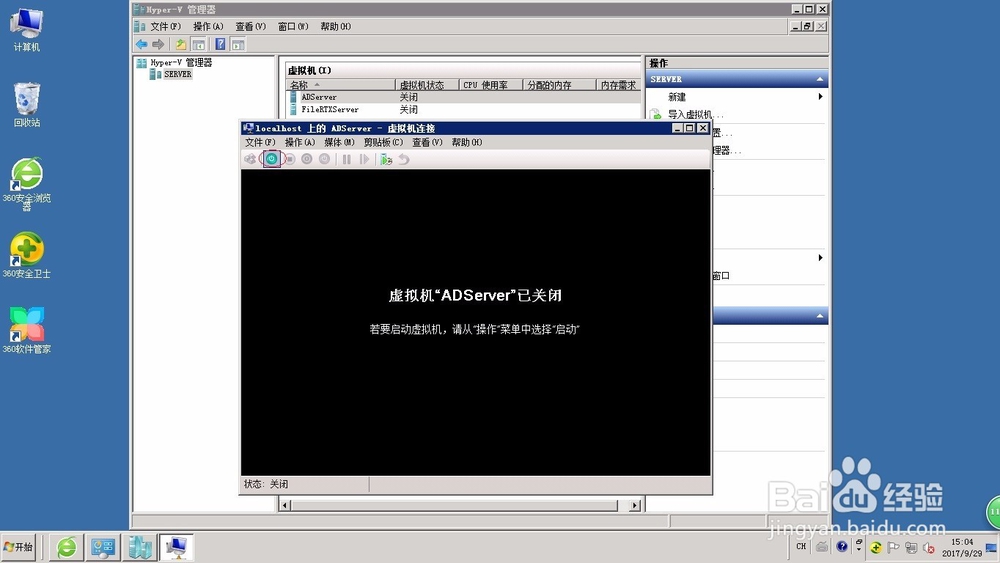
第五步 打开已安装的虚拟机窗口

Hyper-V安装Windows Server 2008 R2 x64企业版

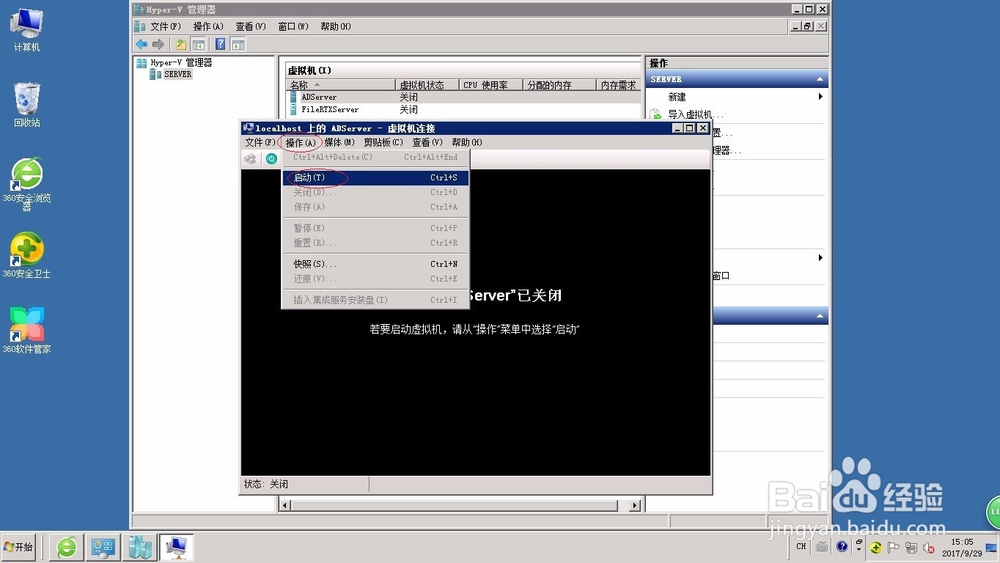
第六步 点击操作菜单,选择启动。

Hyper-V安装Windows Server 2008 R2 x64企业版

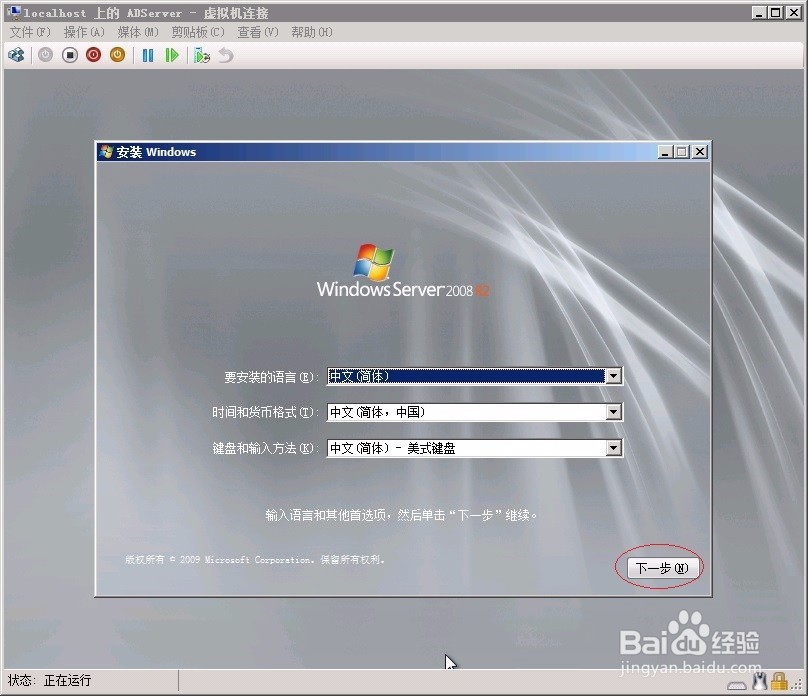
第七步 选择安装语言、时间与货币格式、键盘和输入方法。

Hyper-V安装Windows Server 2008 R2 x64企业版

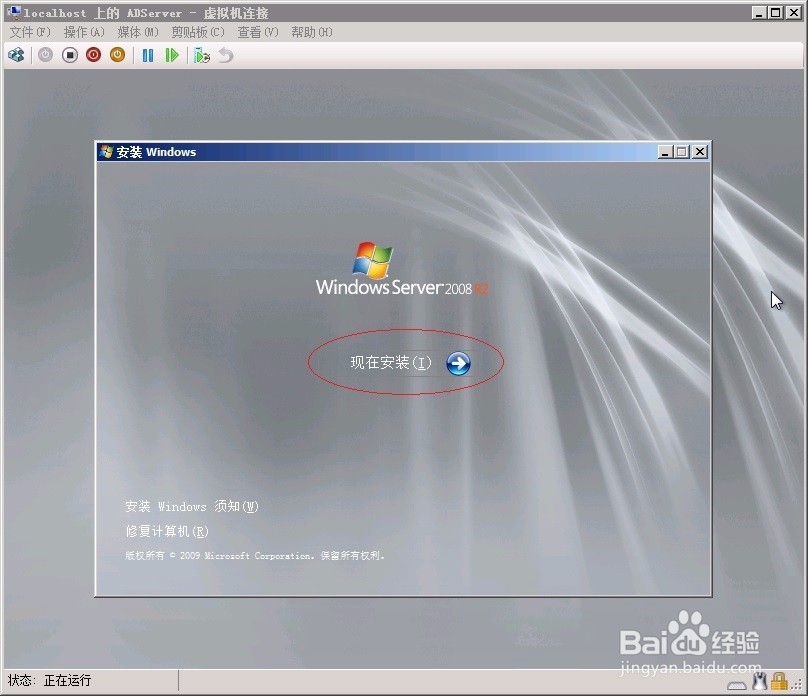
第八步 开始安装Windows Server 2008 R2 x64企业版
Hyper-V安装Windows Server 2008 R2 x64企业版

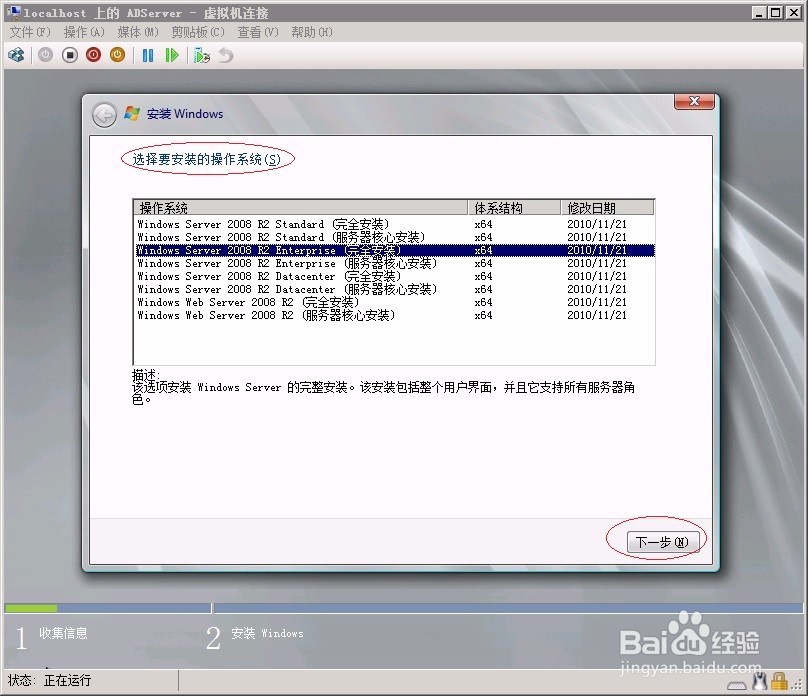
第九步 选择要安装的操作系统为Windows Server 2008 R2 x64企业版
Hyper-V安装Windows Server 2008 R2 x64企业版

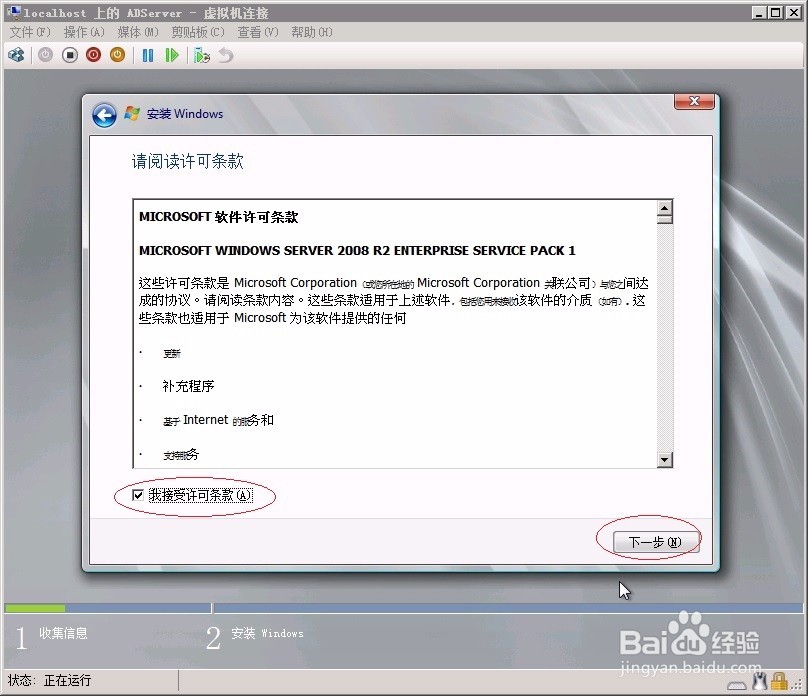
第十步 接受安装许可条款
Hyper-V安装Windows Server 2008 R2 x64企业版

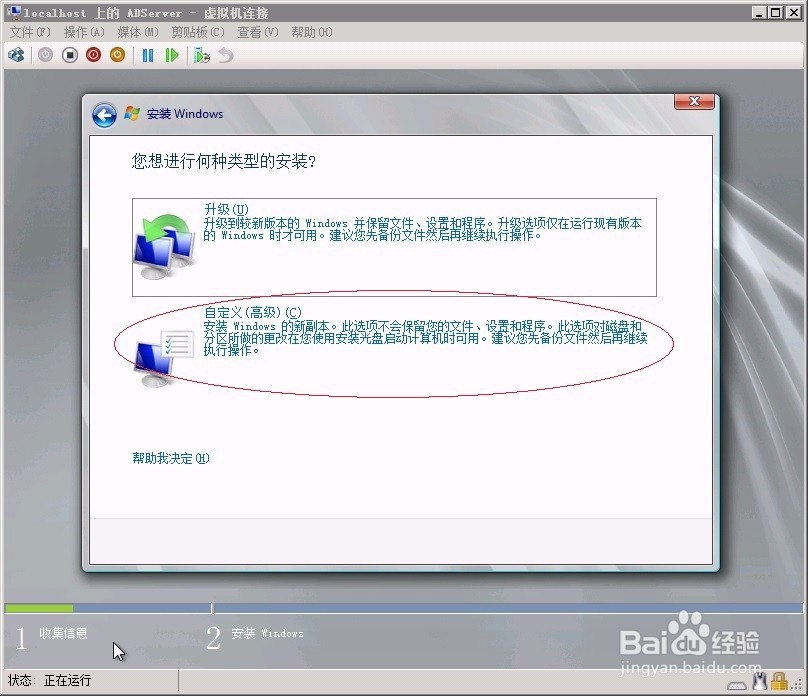
第十一步 选择安装类型为自定义(高级)

Hyper-V安装Windows Server 2008 R2 x64企业版

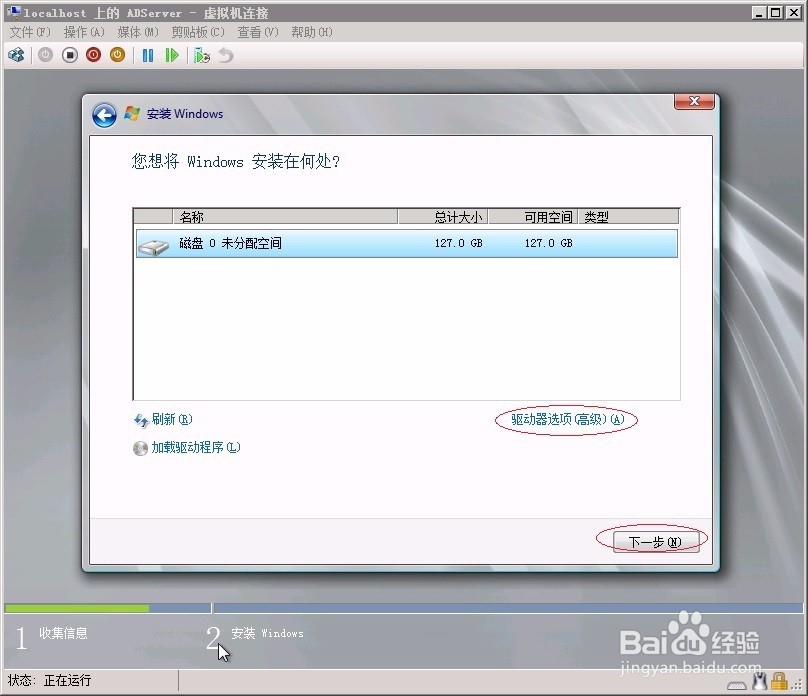
第十二步 点击驱动器选项(高级)建立磁盘分区

Hyper-V安装Windows Server 2008 R2 x64企业版

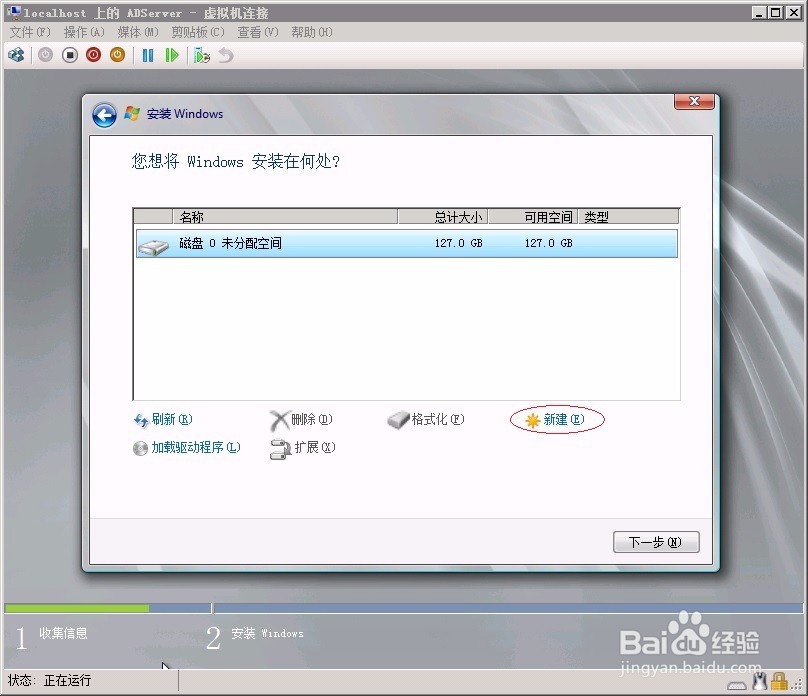
第十三步 创建磁盘分区

Hyper-V安装Windows Server 2008 R2 x64企业版

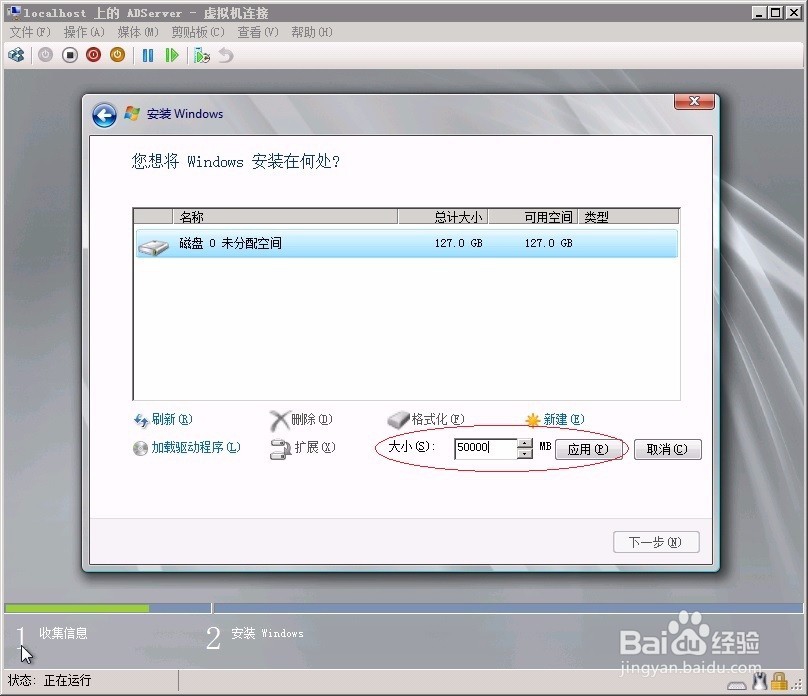
第十四步 分配磁盘分区大小,点击应用。

Hyper-V安装Windows Server 2008 R2 x64企业版

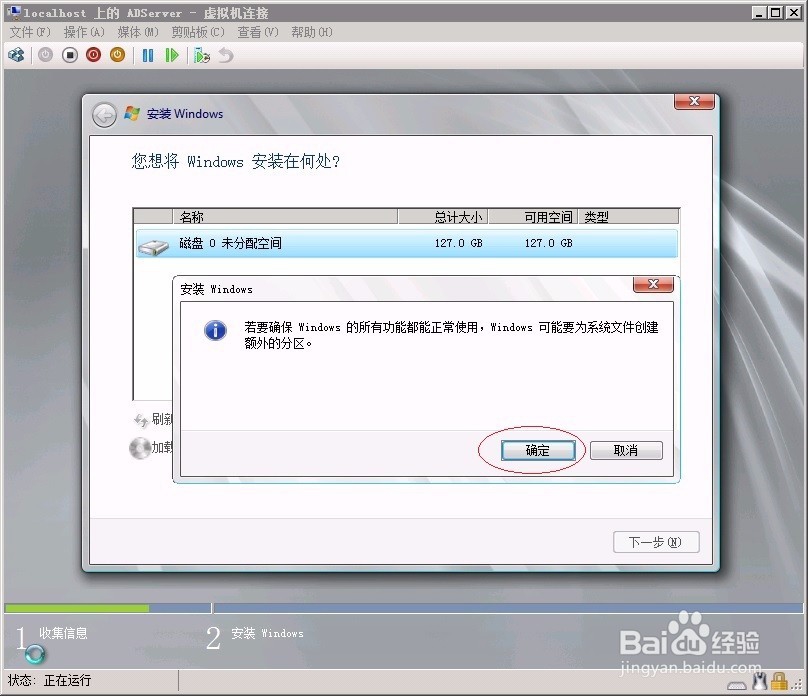
第十五步 显示创建磁盘分区信息,点击确定。

Hyper-V安装Windows Server 2008 R2 x64企业版

第十六步 选择安装Windows Server 2008 R2 x64企业版的分区,点击下一步。
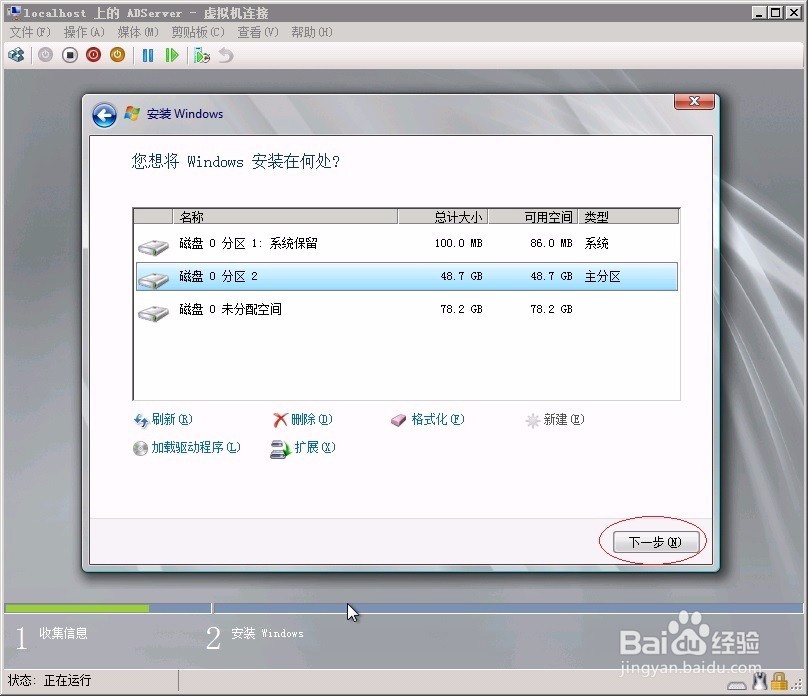
Hyper-V安装Windows Server 2008 R2 x64企业版

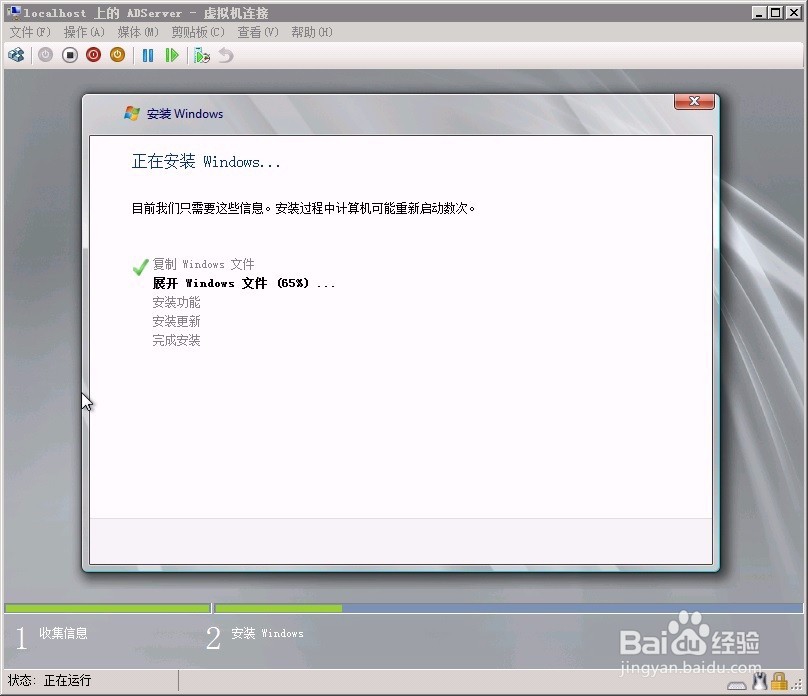
第十七步 查看安装进度

Hyper-V安装Windows Server 2008 R2 x64企业版

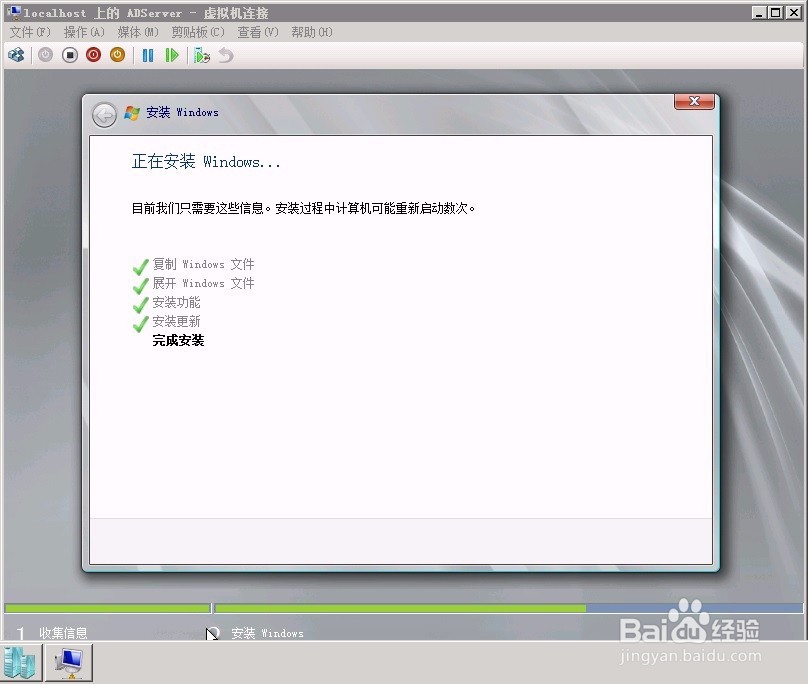
第十八步 观察安装进度

Hyper-V安装Windows Server 2008 R2 x64企业版

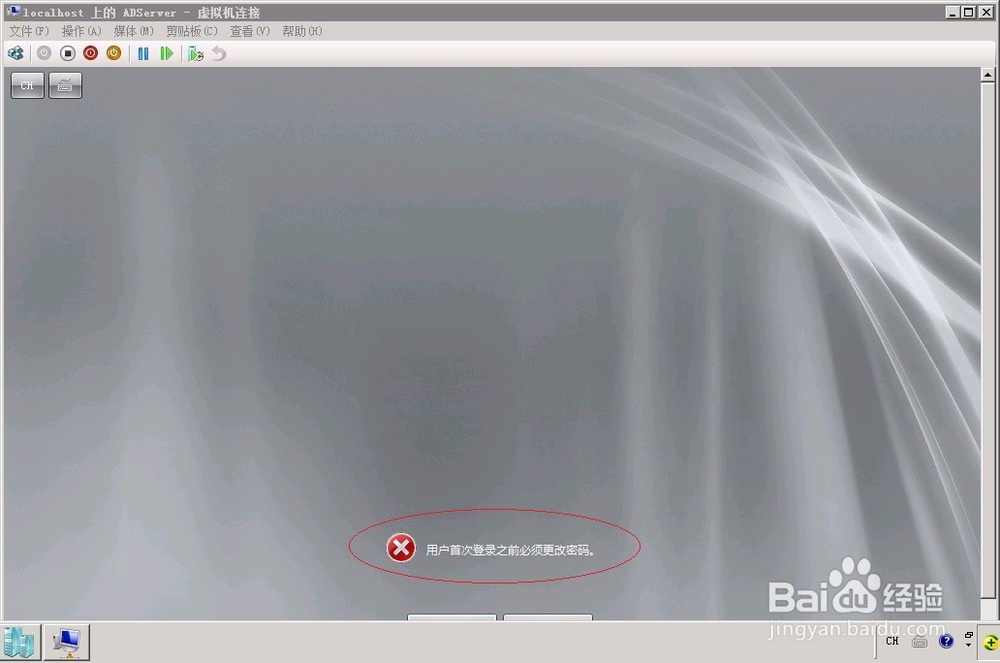
第十九步 用户首次登录之前必须更改密码

Hyper-V安装Windows Server 2008 R2 x64企业版

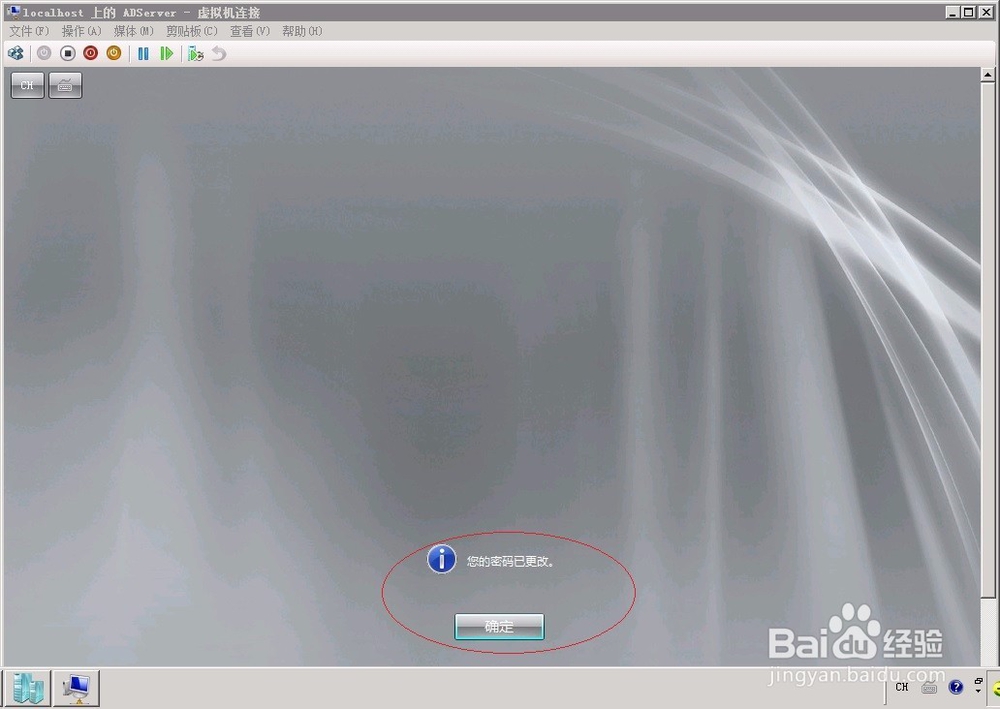
第二十步 确认用户首次登录之前密码已更改

Hyper-V安装Windows Server 2008 R2 x64企业版

第二十一步 进入Windows Server 2008 R2 x64企业版主界面
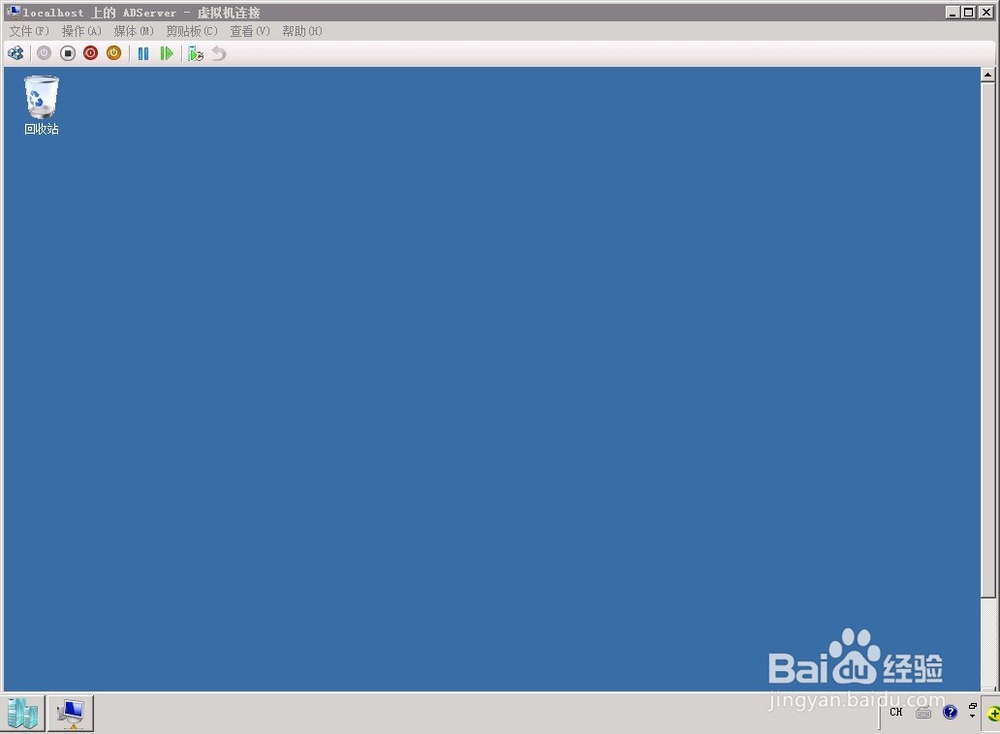
Hyper-V安装Windows Server 2008 R2 x64企业版

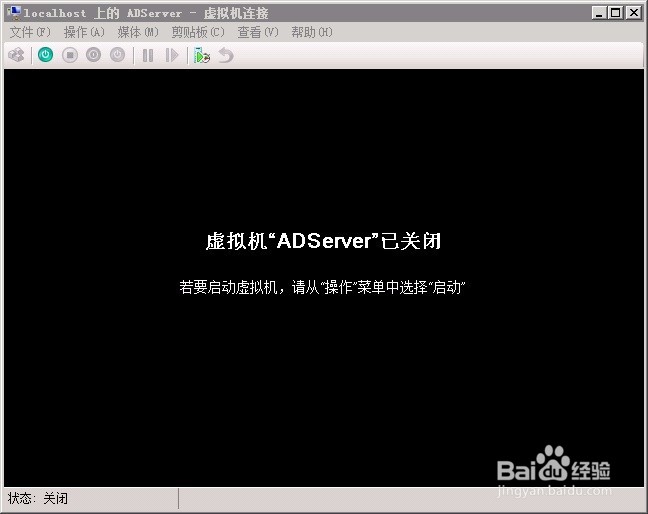
第二十二步 关闭虚拟机,期待再次启动。

Hyper-V安装Windows Server 2008 R2 x64企业版

注意事项

注意激活Windows Server 2008 R2 x64企业版

  • Oracle逻辑备份到NFS ORA-31641
  • sql server 2008怎么恢复备份数据库
  • 怎样关闭电脑端口
  • 易语言如何创建EDB数据库
  • Windows Server 2016/2019 安装 Linux 子系统
  • 热门搜索
    eta是什么意思 点差什么意思 冬天吃萝卜有什么好处 股改是什么意思 电脑卡死了按什么键 不负如来不负卿意思 木梳什么材质的好 什么电视不用电也能看 notice是什么意思 补短板是什么意思