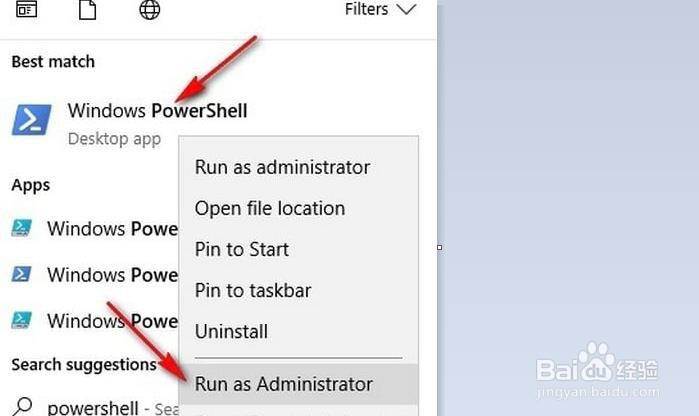
1、从“开始”菜单中搜索PowerShell,并以管理员身份启动。
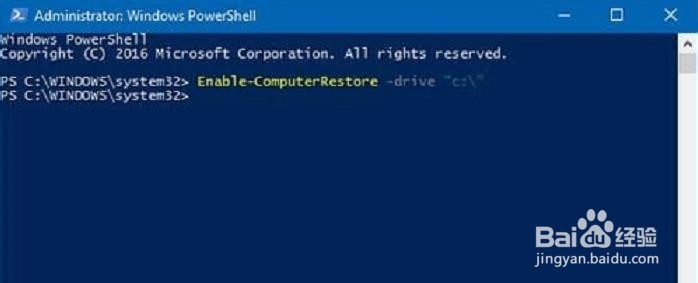
2、在PowerShell窗口上:要启用还原点功能,请键入Enable-ComputerRestore -driver“ c:\”。如果系统驱动器使用其他符号,请替换c:\。
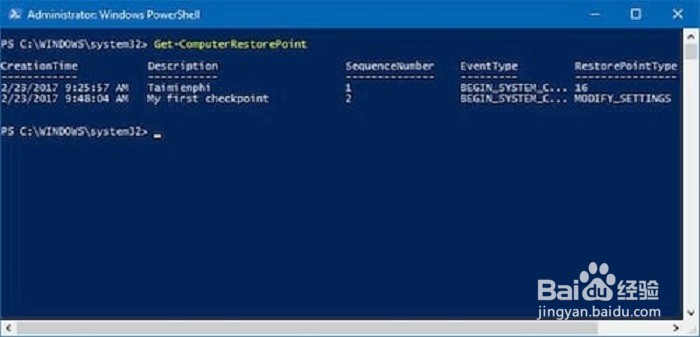
3、要检查系统上已经存在的还原点列表,请键入Get-ComputerRestorePoint。
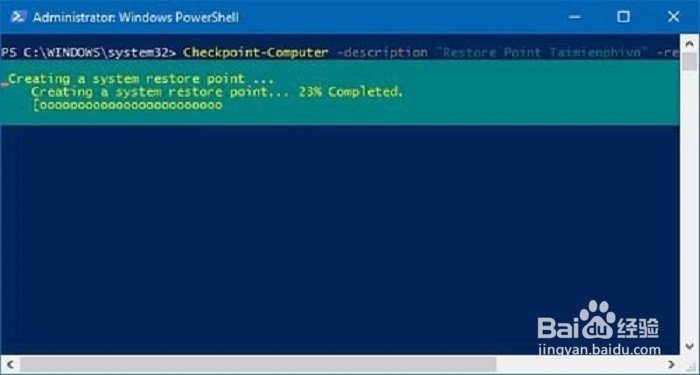
4、要使用PowerShell在Windows 10上创建还原点,请输入Checkpoint-Computer -description“ Restore Point Taimienphi.vn” -restorepointtype“ MODIFY_SETTINGS”。
5、成功创建还原点后,可以重新键入Get-ComputerRestorePoint命令以检查还原点,您将看到已创建新的还原点。

6、如果遇到问题,可以使用Restore-Computer -RestorePoint 3命令从还原点还原系统。将“ 3 ” 替换为您需要还原的还原点的序列号。

