1、下载Endnote X7安装包,解压后,打开里面的文件夹:安装文件,进去后鼠标双击安装程序。

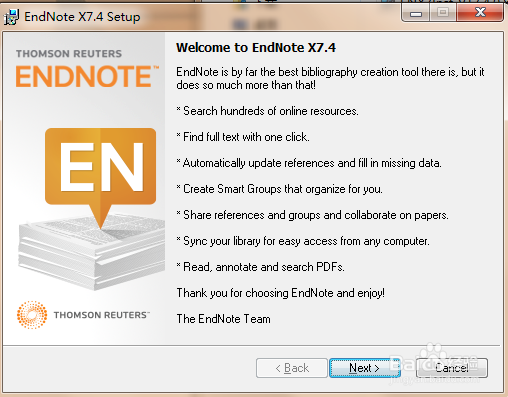
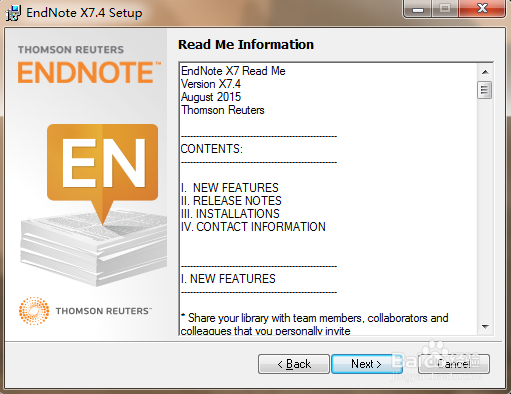
2、在弹出的“Endnote X7.4 Setup”窗口,依次选择如下:
1.“next”;
2.“I would like a 30-day free trial”——“next”;
3.“next”;
4.“I accept license agreement”——“next”;
5.“Typical”——“next”
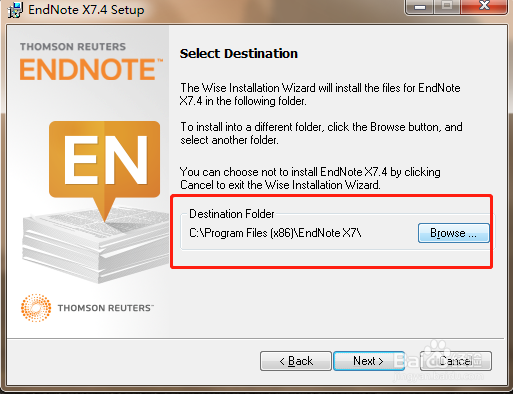
6.选择安装路径(一定要记住,后面有需要)——“next”;
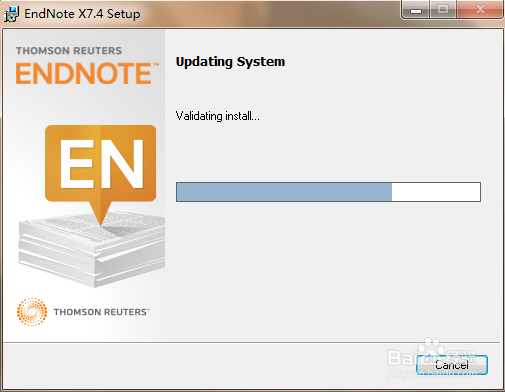
7.等待进度条;
8.选择“Ignore”;
9.安装进度条(需要等几分钟);
10. 点击Finish。安装完成。





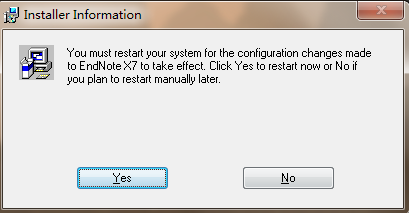
3、在“Installer Information”窗口中,选择“yes”重启电脑。
4、找到步骤2中的选择安装路径,将Endnote X7安装包中的文件“破解文件”中的两个文件,复制到该路径下,粘贴的时候选择“复制和替换”。

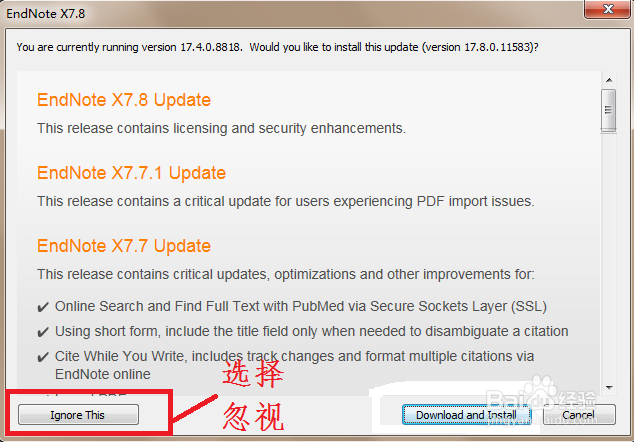
5、在安装路径中,找到endnote,打开,在后续弹出的窗口中,选择“Ignore This”。

6、当我们再次打开word后,在word的工具栏中会出现“EndNote”一栏。这样就证明我们可以使用Endnote在word里插入参考文献啦。

